
Best CS2 Settings for FPS, Visibility, Audio & Competitive Play
The best CS2 settings are not just about higher FPS. The right setup improves clarity, lowers input lag, makes enemies easier to spot, and helps you get more reliable audio information in competitive matches.
If you want the best CS2 settings, you need more than random “pro player” values copied from social media. A strong Counter-Strike 2 setup should balance four things: performance, visibility, audio clarity, and consistency.
In this guide, we’ll cover the best CS2 settings for video, audio, mouse, crosshair, radar, and network options, with explanations for what matters and what is mostly personal preference.
Looking to tune your aim too? Use our CS2 eDPI Calculator, test your speed with our Reaction Time Test, or build a cleaner reticle with our CS2 Crosshair Generator.
Quick Answer: Best CS2 Settings
- Display Mode: Fullscreen
- Resolution: 1280×960 stretched for competitive preference, or 1920×1080 for clarity
- Refresh Rate: Highest available
- Brightness: Around 100% to 110%
- Boost Player Contrast: Enabled
- V-Sync: Disabled
- NVIDIA Reflex Low Latency: Enabled or Enabled + Boost on supported NVIDIA GPUs
- Dynamic Shadows: All
- Shader Detail: Low
- Particle Detail: Low
- Ambient Occlusion: Disabled
- FidelityFX Super Resolution: Disabled for competitive clarity
- DPI: Usually 400 to 800
- eDPI: Usually around 600 to 1200
- Max Acceptable Game Traffic: Unrestricted
- Buffering to smooth packet loss: Off by default, only increase if your connection is unstable
Best CS2 Video Settings
Video settings have the biggest impact on your experience in Counter-Strike 2. They affect FPS, input latency, target visibility, and how clean the game looks during fights. Most competitive players lower expensive visual settings, but keep a few options enabled if they improve information and visibility.
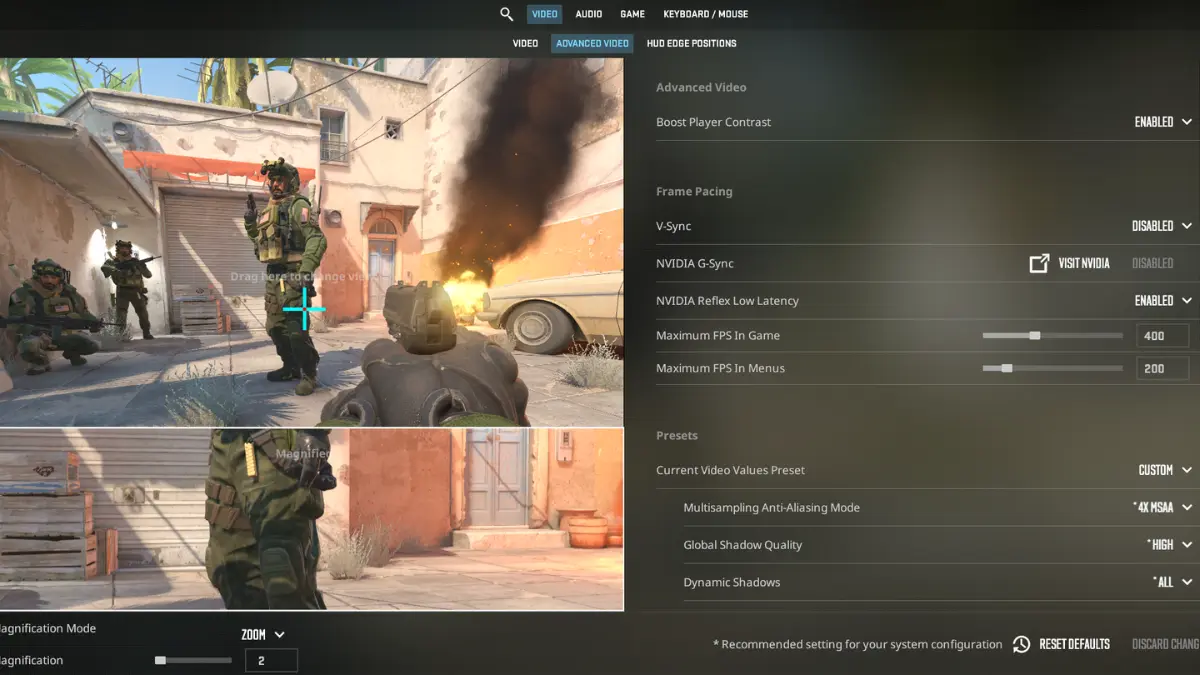
Basic Video Settings
- Main Menu Background Scenery: Personal preference
- Color Mode: Computer Monitor
- Brightness: 100% to 110%
- Aspect Ratio: 4:3 stretched or 16:9 native
- Resolution: 1280×960 or 1920×1080
- Display Mode: Fullscreen
- Refresh Rate: Highest possible
- Laptop Power Savings: Disabled
Fullscreen is the safer competitive choice because it usually gives lower input latency than windowed modes. Higher refresh rates also make the game feel more responsive and visually smoother.
Resolution is partly preference. Many competitive players still prefer 4:3 stretched because enemy models feel larger on screen, while 16:9 native gives a cleaner and more natural image. There is no single “correct” answer here, but if your priority is pure competitive comfort, 1280×960 stretched remains one of the most common picks.
Advanced Video Settings
- Boost Player Contrast: Enabled
- V-Sync: Disabled
- NVIDIA Reflex Low Latency: Enabled or Enabled + Boost
- Multisampling Anti-Aliasing Mode: CMAA2 or 2x MSAA
- Global Shadow Quality: Low
- Dynamic Shadows: All
- Model / Texture Detail: Low or Medium
- Texture Filtering Mode: Bilinear or low-cost option
- Shader Detail: Low
- Particle Detail: Low
- Ambient Occlusion: Disabled
- High Dynamic Range: Quality or Performance, depending on your PC
- FidelityFX Super Resolution: Disabled
Boost Player Contrast should stay enabled because it helps players stand out more clearly. V-Sync should stay off because it adds latency. NVIDIA Reflex is also worth enabling on supported NVIDIA cards if you want lower system latency.
One of the most important competitive settings is Dynamic Shadows. This matters because shadows can reveal enemy presence before the model is fully visible. That is one reason many players lower most settings, but still keep some important visibility options enabled.
Ambient Occlusion, higher shader settings, and heavier upscaling options usually add visual cost without giving much real competitive value. That is why most strong CS2 guides push those settings down or off.
Best CS2 Audio Settings
Audio in CS2 is extremely important because sound often gives you information before visual contact does. Footsteps, utility, reloads, ladder movement, and bomb sounds all matter, so your audio settings should focus on clarity, direction, and consistency rather than immersion.
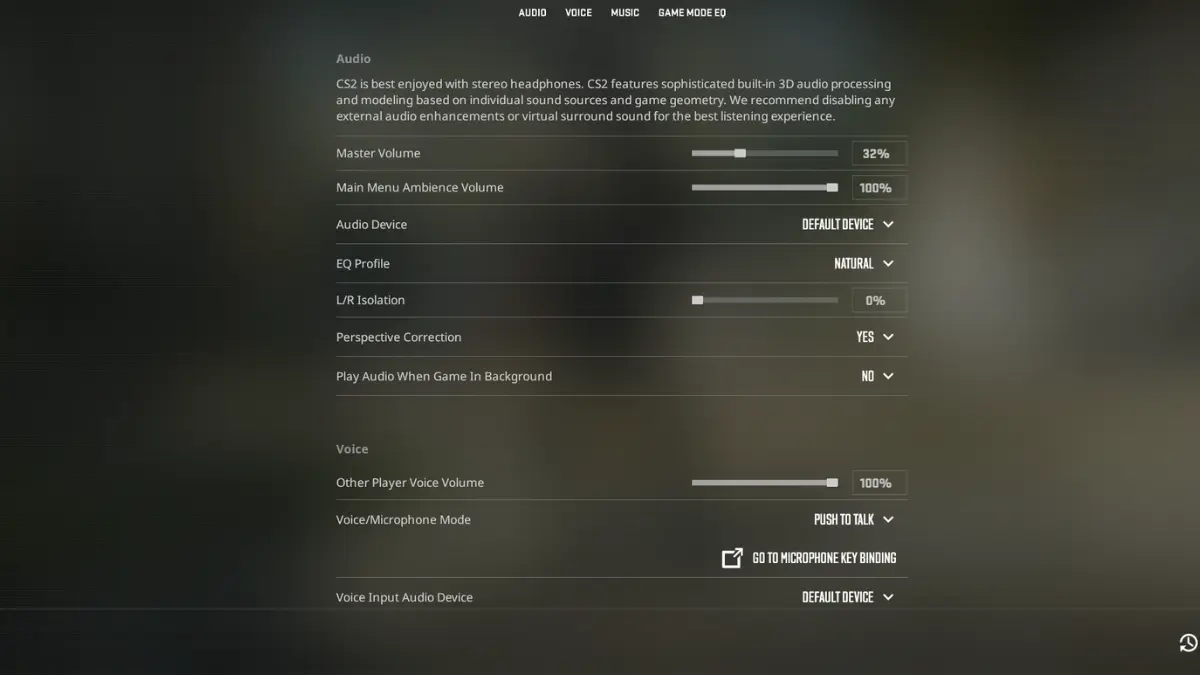
- Audio Device: Your main headset
- EQ Profile: Natural or Crisp
- L/R Isolation: Start around 50%
- Perspective Correction: Test On and Off, keep the one that gives you better directional consistency
- Main Volume: Personal preference, but high enough for footsteps without distortion
- Music Volume: Low or Off
- VOIP Volume: Moderate, so teammates don’t cover key sounds
- Push-to-Talk: Enabled
Audio is one of the few areas where personal preference matters more than on video settings. Some players prefer Perspective Correction On, while others play better with it Off. The same goes for EQ options like Natural and Crisp.
A safe starting point is Natural or Crisp EQ, L/R Isolation around 50%, low music volume, and moderate voice volume. That gives you a clean base without making the soundstage feel strange or tiring over time.
Best CS2 Mouse Settings
Mouse settings are where consistency matters most. The majority of competitive players still use lower sensitivity ranges because they allow cleaner micro-adjustments, better spray control, and more stable crosshair placement.
- DPI: 400 or 800
- In-Game Sensitivity: Usually around 1.2 to 2.0, depending on DPI
- eDPI: Usually between 600 and 1200
- Mouse Acceleration: Off
- Raw Input Style: Keep it consistent and avoid extra software smoothing
Low to medium sensitivity remains the safest starting point for most players because it supports precision without making large movements feel uncontrollable.
To find your real sensitivity more easily, use our CS2 eDPI Calculator.
Best CS2 Crosshair Settings
The best CS2 crosshair is the one you can track easily on every map and in every fight. It should stay visible without covering too much of the enemy model. Smaller and cleaner crosshairs usually work best for precision, while slightly thicker ones can feel easier to see.
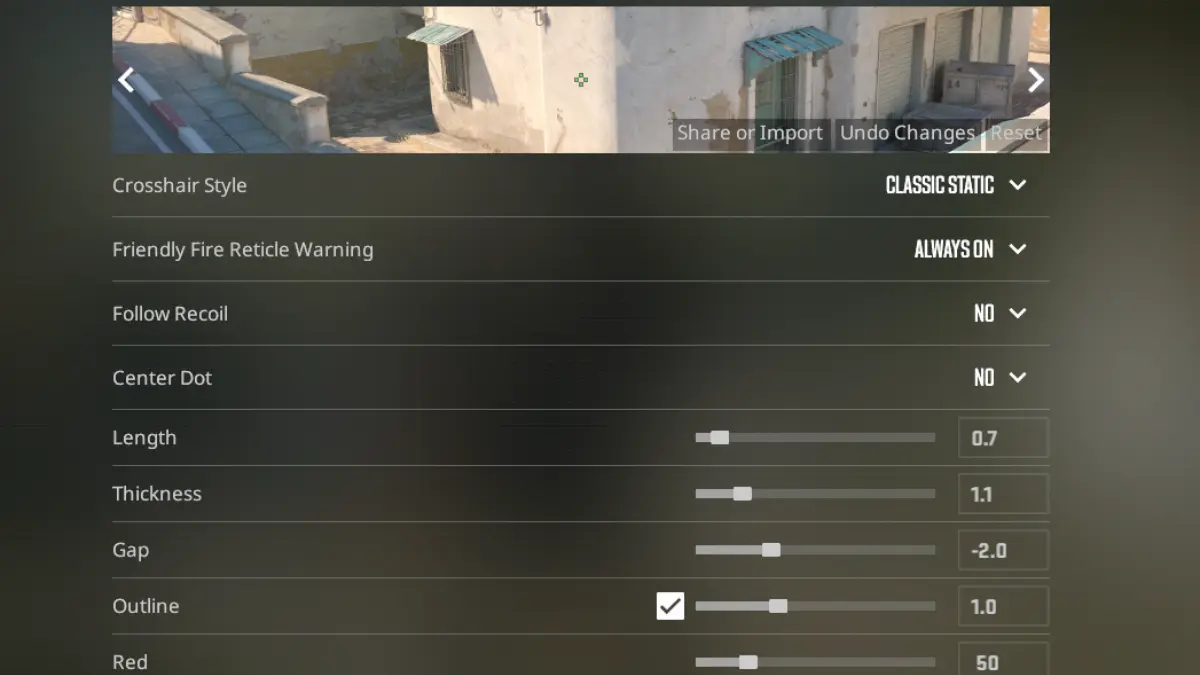
- Style: Simple static style
- Color: Bright color with good contrast
- Thickness: Low to medium
- Gap: Slightly negative or close to neutral
- Outline: On if visibility is an issue
- Dot: Optional, preference-based
We now have a dedicated CS2 Crosshair Generator, so you can build a crosshair visually and copy real console code directly into the game.
Best CS2 Radar Settings
Radar settings are underrated. A clean radar helps you process teammate positions, bomb locations, and pressure across the map faster.
- Radar Centers the Player: Personal preference
- Radar is Rotating: Enabled
- Radar Hud Size: Medium
- Radar Map Zoom: Low enough to show useful map space without making icons too small
The exact values depend on your monitor size and preference, but the goal is simple: see enough of the map to read rotations quickly without making the radar hard to understand at a glance.
Best CS2 Game & Performance Settings
- Enable Developer Console: Yes
- Maximum FPS In Game: 0 or very high
- Maximum FPS In Menus: Lower than in-game, such as 60
- NVIDIA G-Sync: Usually off for pure competitive focus unless you specifically tune around it
Most competitive-focused setups leave in-game FPS effectively uncapped or set very high, while menu FPS can stay much lower. That keeps menus lighter without limiting performance during matches.
Best CS2 Network Settings
Network settings matter more in CS2 than many players realize. If your game feels inconsistent, delayed, or prone to rubber-banding, check these before changing random launch options.
- Max Acceptable Game Traffic: Unrestricted
- Buffering to Smooth Over Packet Loss: None by default
Keep Max Acceptable Game Traffic unrestricted unless you have a specific reason not to. For Buffering to smooth over packet loss, the best default choice is usually None because buffering can add delay. Only raise it if your connection is unstable and you are actively trying to reduce packet loss spikes.
Recommended CS2 Settings by Goal
For Maximum FPS
- Use Fullscreen
- Lower resolution if needed
- Keep Boost Player Contrast enabled
- Set shaders, particles, and ambient occlusion low or off
- Disable V-Sync
- Use Reflex if you have a compatible NVIDIA GPU
For Best Visibility
- Brightness around 100–110%
- Boost Player Contrast enabled
- CMAA2 or light AA if jagged edges bother you
- Dynamic Shadows on All
- Use a bright crosshair color
For a More Comfortable Image
- Use 1920×1080 native
- Keep some texture clarity
- Test Natural vs Crisp audio EQ
- Use a radar size and zoom you can read instantly
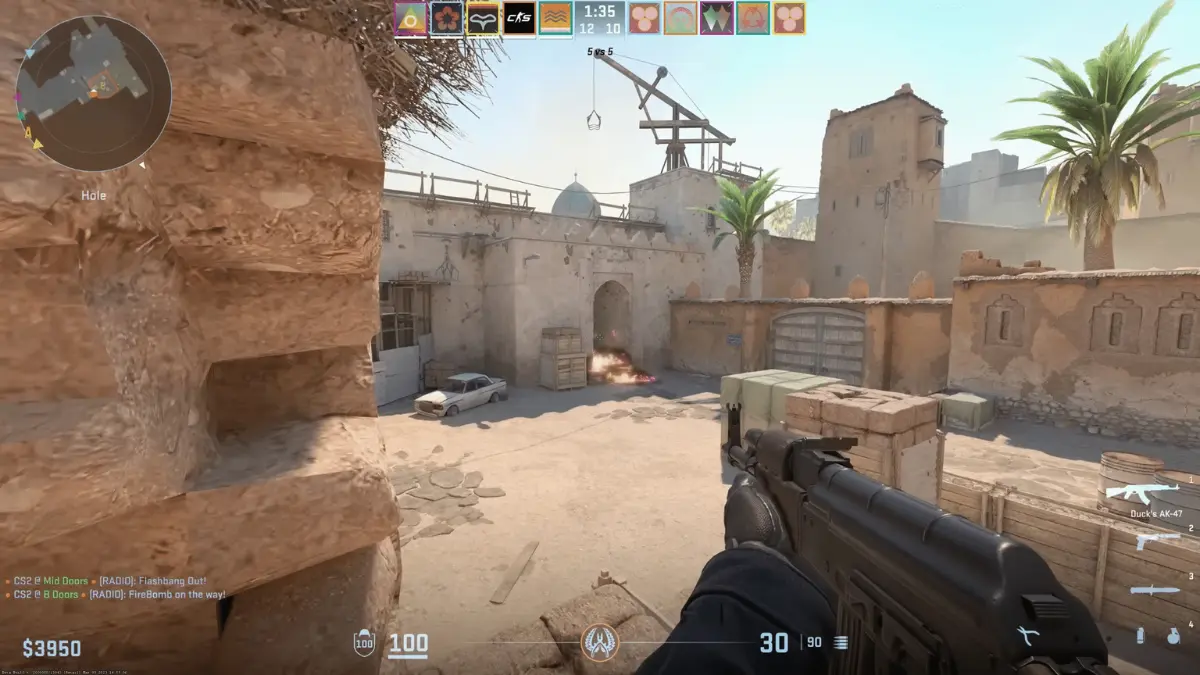
Final Thoughts on the Best CS2 Settings
The best CS2 settings depend on what you want most: maximum FPS, cleaner visibility, or a balanced competitive setup. For most players, the best starting point is simple: Fullscreen, highest refresh rate, V-Sync off, Boost Player Contrast on, Dynamic Shadows on All, low-cost visual settings, and a lower sensitivity that feels consistent.
From there, fine-tune your crosshair, radar, and audio until the game feels natural. Do not change ten things at once. Test one category at a time, then keep the settings that actually help you play better.
Before you leave, try our CS2 Crosshair Generator, compare sensitivity with the eDPI Calculator, and check your speed with the Reaction Time Test.